Blueprints: connect your game
Connect your gameplay owner
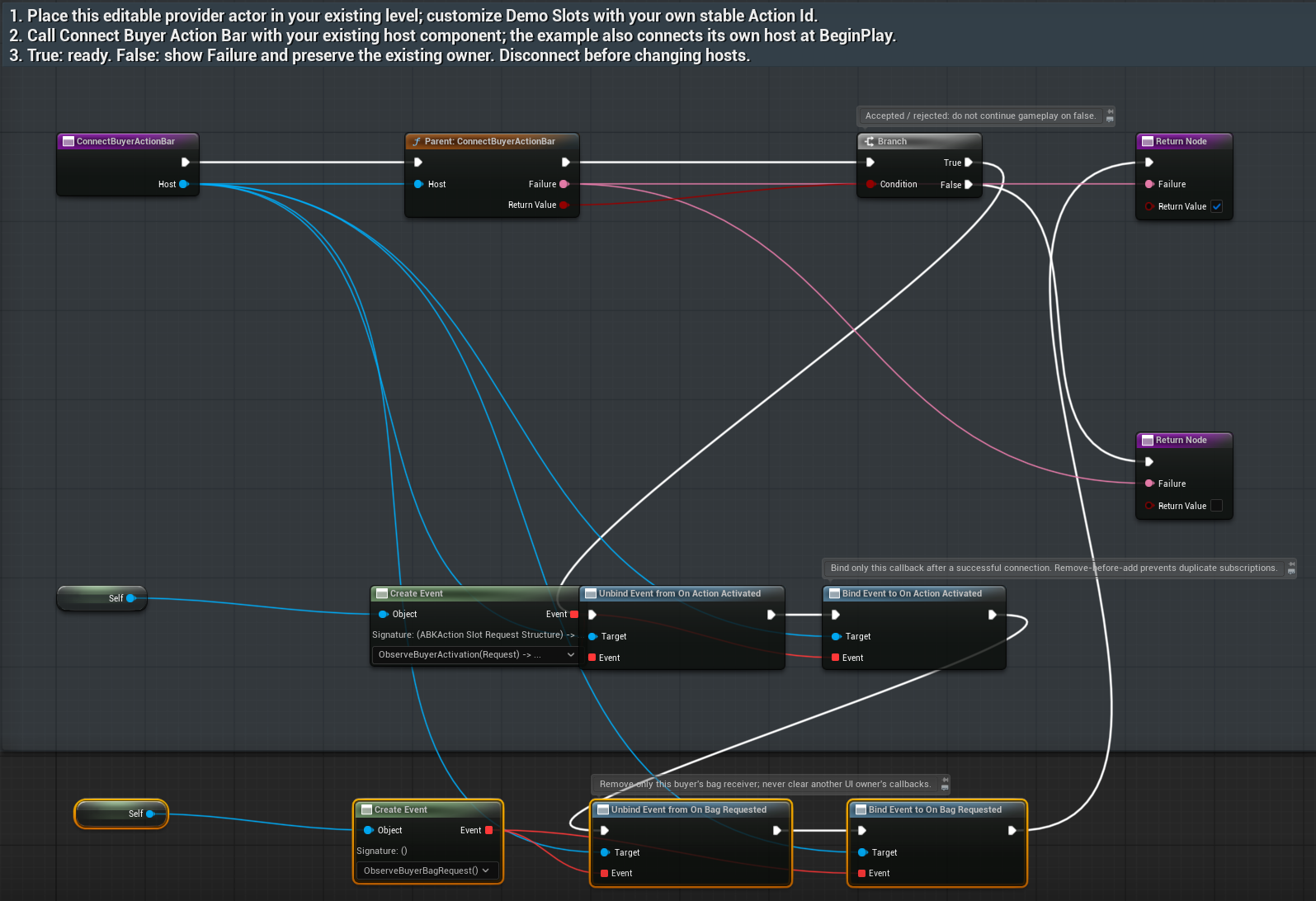
/ActionBarKit/ActionBarKit/Examples/BP_ABK_BuyerProvider Graph / function: ConnectBuyerActionBar
Select to enlarge. Open original for the full-resolution, unaltered capture.
What to connect and what happens
- Duplicate the supplied example into your project if you want to customize it. Place your provider actor in the level and configure Demo Slots with your own stable ActionId values.
- Call Connect Buyer Action Bar with the existing Action Bar Host. Follow the Boolean branch: true connects the observer events; false returns Failure and preserves the existing owner.
- Bind only after connection succeeds. The example removes each exact receiver before binding it, preventing duplicate action and bag callbacks. Compile, save and confirm your own callback runs once.
Supply current action data
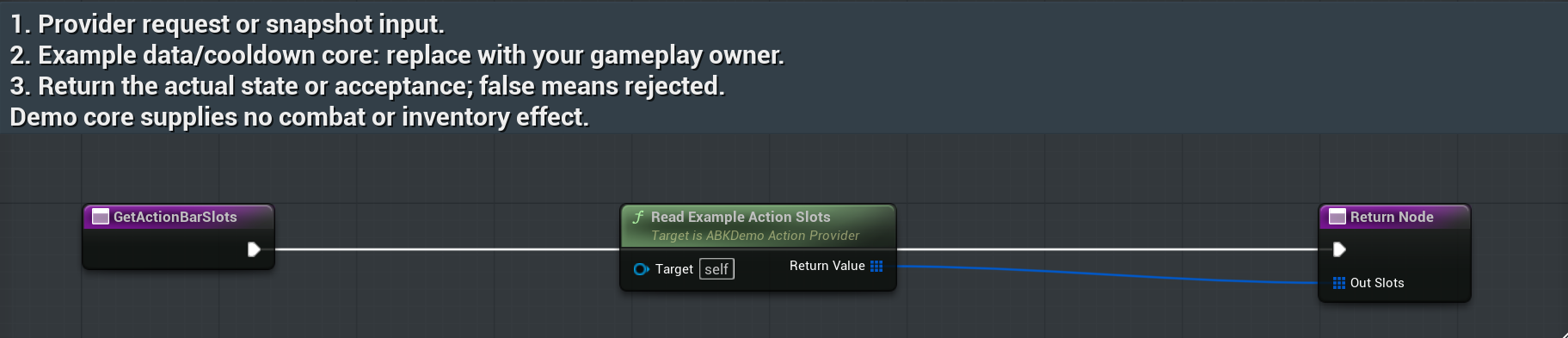
/ActionBarKit/ActionBarKit/Examples/BP_ABK_BuyerProvider Graph / function: GetActionBarSlots
Select to enlarge. Open original for the full-resolution, unaltered capture.
What to connect and what happens
- Open GetActionBarSlots. The sample Read Example Action Slots feeds Out Slots; replace that snapshot source with data from your own gameplay owner.
- Return unique positive positions, stable IDs, icons, complete key chords, availability, cooldowns and counts. Keep assignment/resource authority in your existing system.
- Compile and save. Refresh From Action Provider should show your returned snapshot; an empty snapshot does not supply playable actions.
Decide whether an action is ready
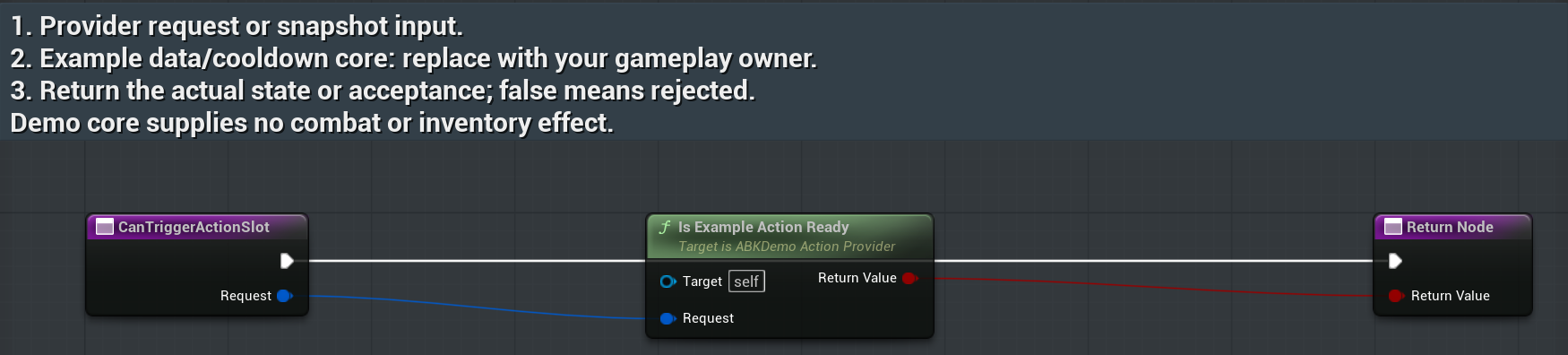
/ActionBarKit/ActionBarKit/Examples/BP_ABK_BuyerProvider Graph / function: CanTriggerActionSlot
Select to enlarge. Open original for the full-resolution, unaltered capture.
What to connect and what happens
- Open CanTriggerActionSlot and pass Request to your readiness check. The sample Is Example Action Ready returns the Boolean shown.
- Check current ID/position, cooldown, resources and permission without committing an effect. Return false for refusal.
- Commit once in TriggerActionSlot after a final state check, then return true. Walkthrough 09 shows the supplied commit graph; this readiness function must stay free of gameplay effects.
Try request, cancel and reconnect
/ActionBarKit/ActionBarKit/Examples/BP_ABK_BuyerProvider Graph / function: BuyerInputAndCleanup
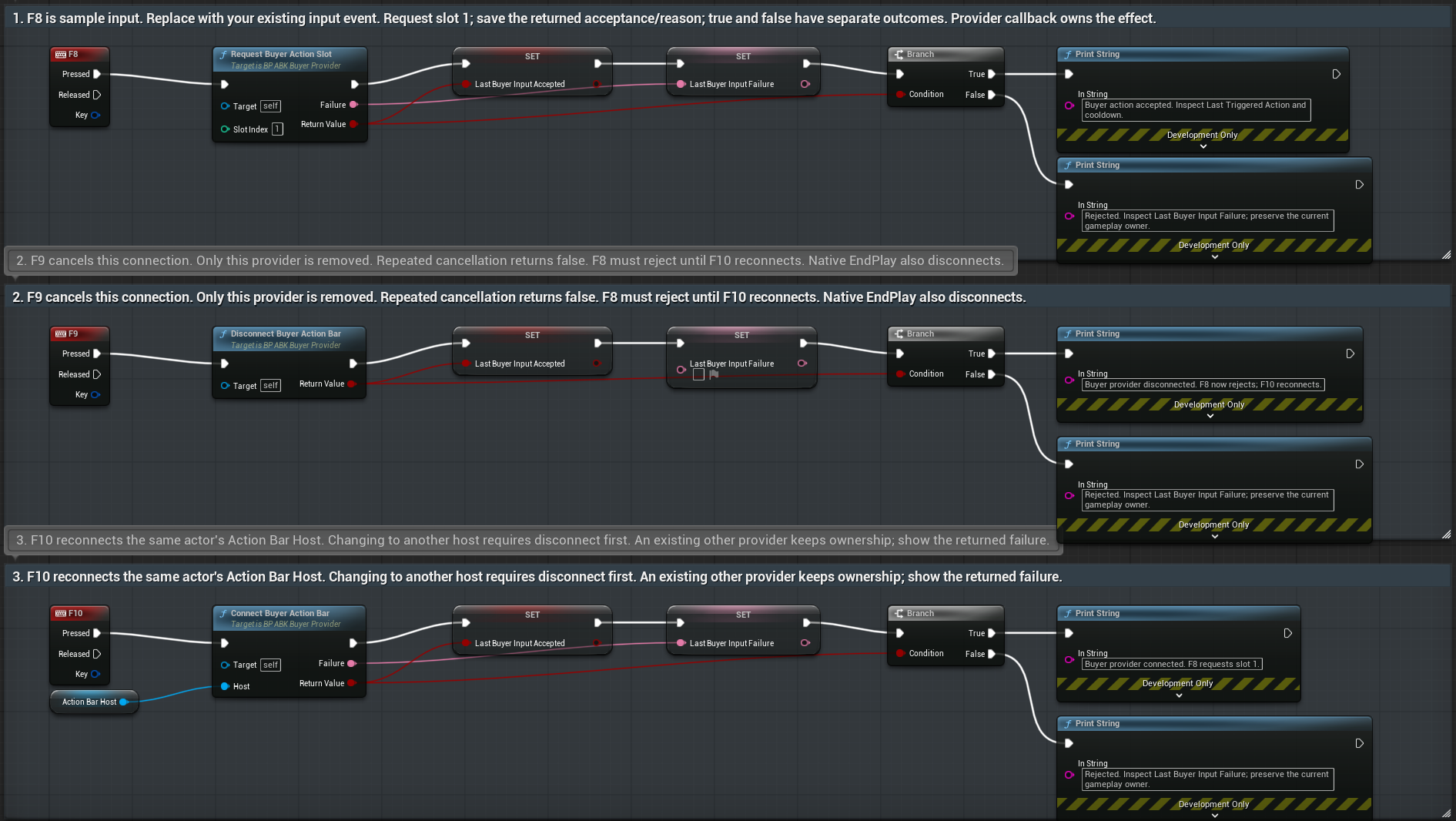
Select to enlarge. Open original for the full-resolution, unaltered capture.
What to connect and what happens
- Open BuyerInputAndCleanup on the supplied example actor. F8, F9 and F10 are actual sample key events in that actor: F8 requests slot 1, F9 disconnects and F10 reconnects. They are not global action-bar shortcut assignments.
- Replace F8 with your game’s input event. Store the returned acceptance and Failure, then handle the separate accepted/refused outcomes. Let the provider own the effect.
- Test F9 followed by F8: the disconnected request must be refused. F10 reconnects this same actor’s host. Disconnect first before changing hosts; another owner must remain protected.
Disconnect without clearing another owner
/ActionBarKit/ActionBarKit/Examples/BP_ABK_BuyerProvider Graph / function: DisconnectBuyerActionBar
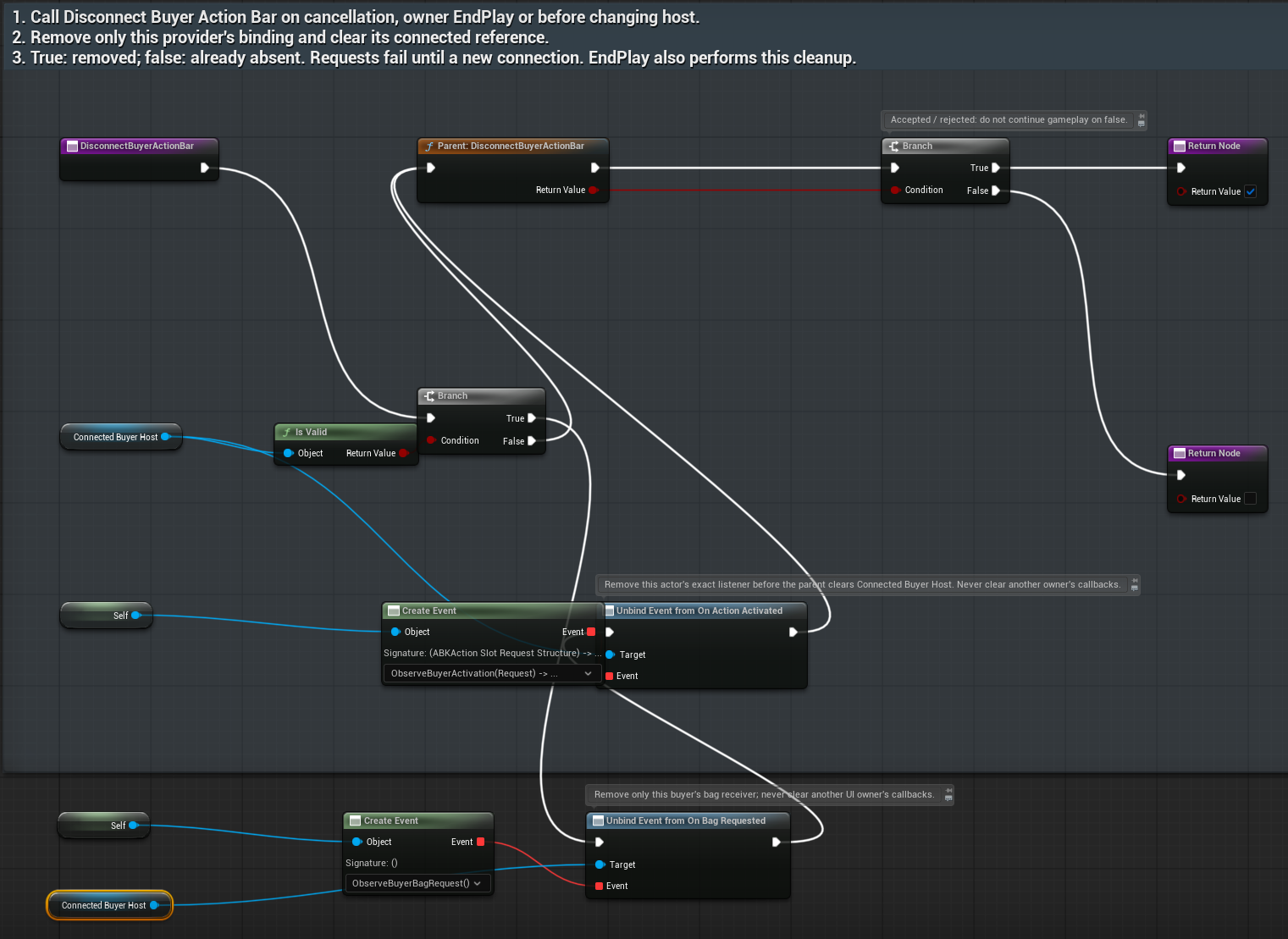
Select to enlarge. Open original for the full-resolution, unaltered capture.
What to connect and what happens
- Call Disconnect Buyer Action Bar on cancellation, owner EndPlay or before changing hosts.
- Remove only this provider’s exact action/bag event receivers before the parent clears its connected host reference.
- True means removed; false means already absent. Requests fail until a valid new connection. Compile/save, disconnect twice and verify no stale callback fires.
Connect your own combat result
/ActionBarKit/ActionBarKit/Beginner/BP_ABK_SimpleAbilityRouter Graph / function: ExecuteAutoAttack
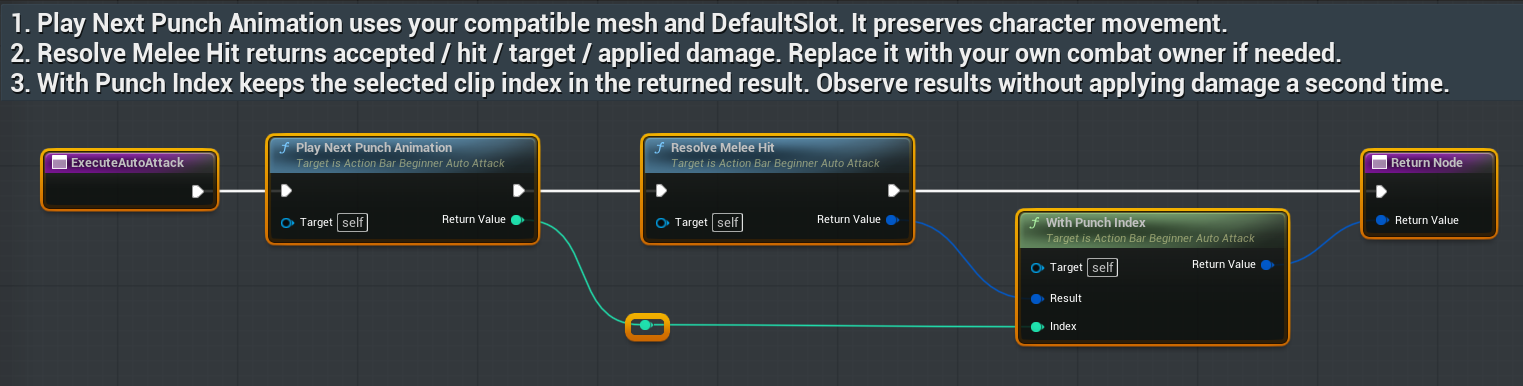
Select to enlarge. Open original for the full-resolution, unaltered capture.
What to connect and what happens
- Open ExecuteAutoAttack. Play Next Punch Animation cycles compatible clips on Animation Slot; Resolve Melee Hit makes the immediate sweep/damage request.
- With Punch Index preserves the selected clip in the returned result. A miss can still be accepted; cooldown or authority refusal must not apply another effect.
- For your combat system, replace the effect with your owner’s call and return its actual result. Avoid both the parent damage effect and your replacement. Observe On Auto Attack Completed or Last Result.
Update the icon after equip or replacement
/ActionBarKit/ActionBarKit/Beginner/Examples/BP_ABK_EquipmentIconSource Graph / function: NotifyWeaponEquipped
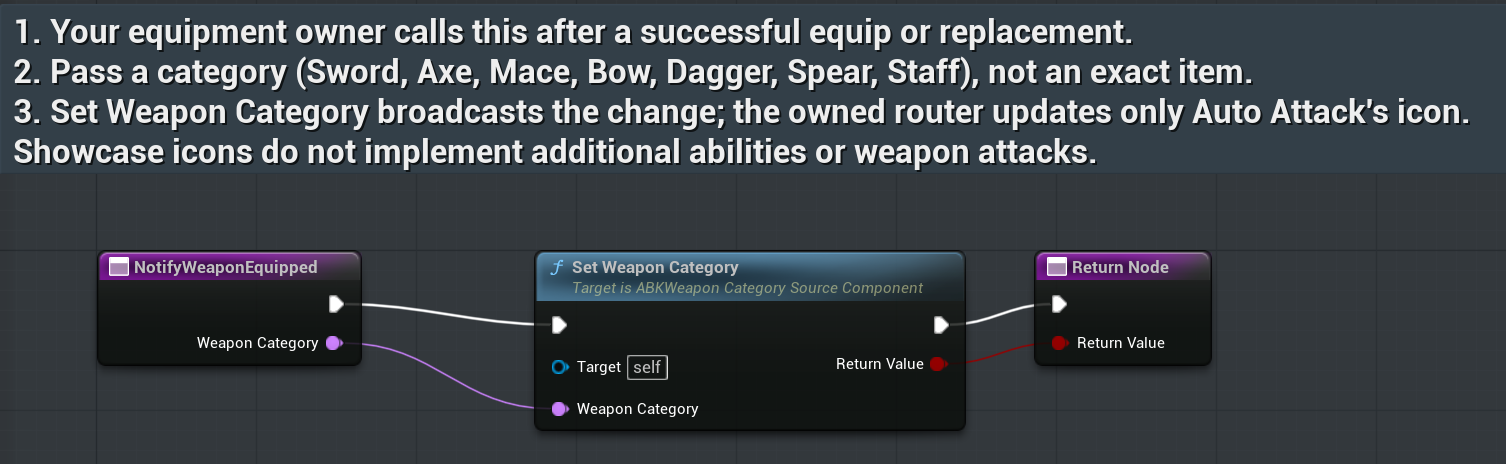
Select to enlarge. Open original for the full-resolution, unaltered capture.
What to connect and what happens
- Attach the equipment source and your router to the same pawn. Your equipment owner calls Notify Weapon Equipped after it successfully equips or replaces the active weapon.
- Pass Sword, Axe, Mace, Bow, Dagger, Spear or Staff through Weapon Category. The category represents the type of weapon; it need not identify the exact item.
- Set Weapon Category broadcasts a change. Check the result and icon while preserving cooldown and other slots. An unsupported category is refused; your owner still owns the item and equip rules.
Restore the fist after unequip
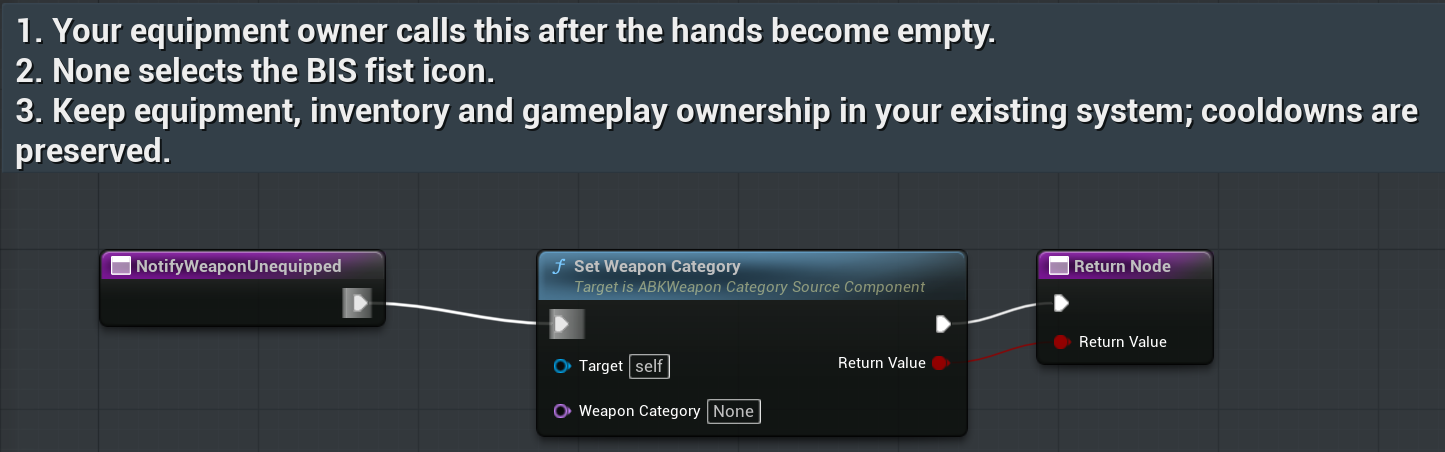
/ActionBarKit/ActionBarKit/Beginner/Examples/BP_ABK_EquipmentIconSource Graph / function: NotifyWeaponUnequipped
Select to enlarge. Open original for the full-resolution, unaltered capture.
What to connect and what happens
- When the active hands become empty, your equipment owner calls Notify Weapon Unequipped on that same pawn’s source.
- The graph sets category None, selecting the BIS fist. Fist and Unarmed names also normalize to None.
- Compile/save and test equip, replacement and unequip. Other slots and cooldowns should be unchanged. Repeating the same category does not broadcast another change.
Return your game’s accepted action result
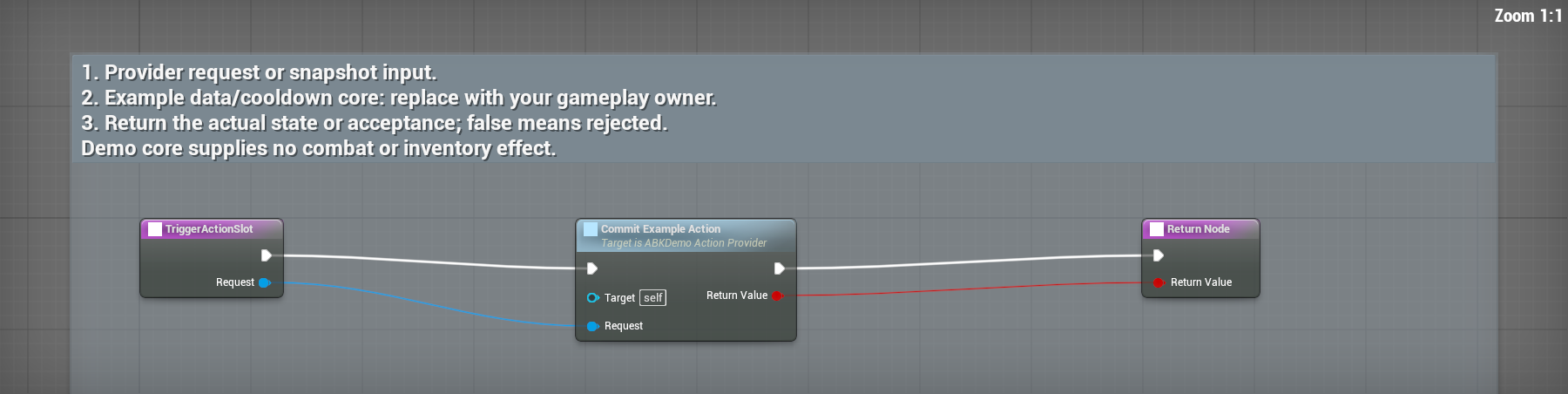
/ActionBarKit/ActionBarKit/Examples/BP_ABK_BuyerProvider — TriggerActionSlot
Select to enlarge. Open original for the full-resolution native capture.
What to connect and what happens
- Open BP_ABK_BuyerProvider and search TriggerActionSlot. This editable example returns the example provider’s actual acceptance result.
- Replace the example core with your gameplay owner’s request. Return true only when that owner accepts the action; return false when it refuses.
- Test an accepted request and a refused request. Observe the outgoing action event without applying the same gameplay effect twice. Keep cancellation and ownership cleanup connected.
Edit the weapon-category icon mapping
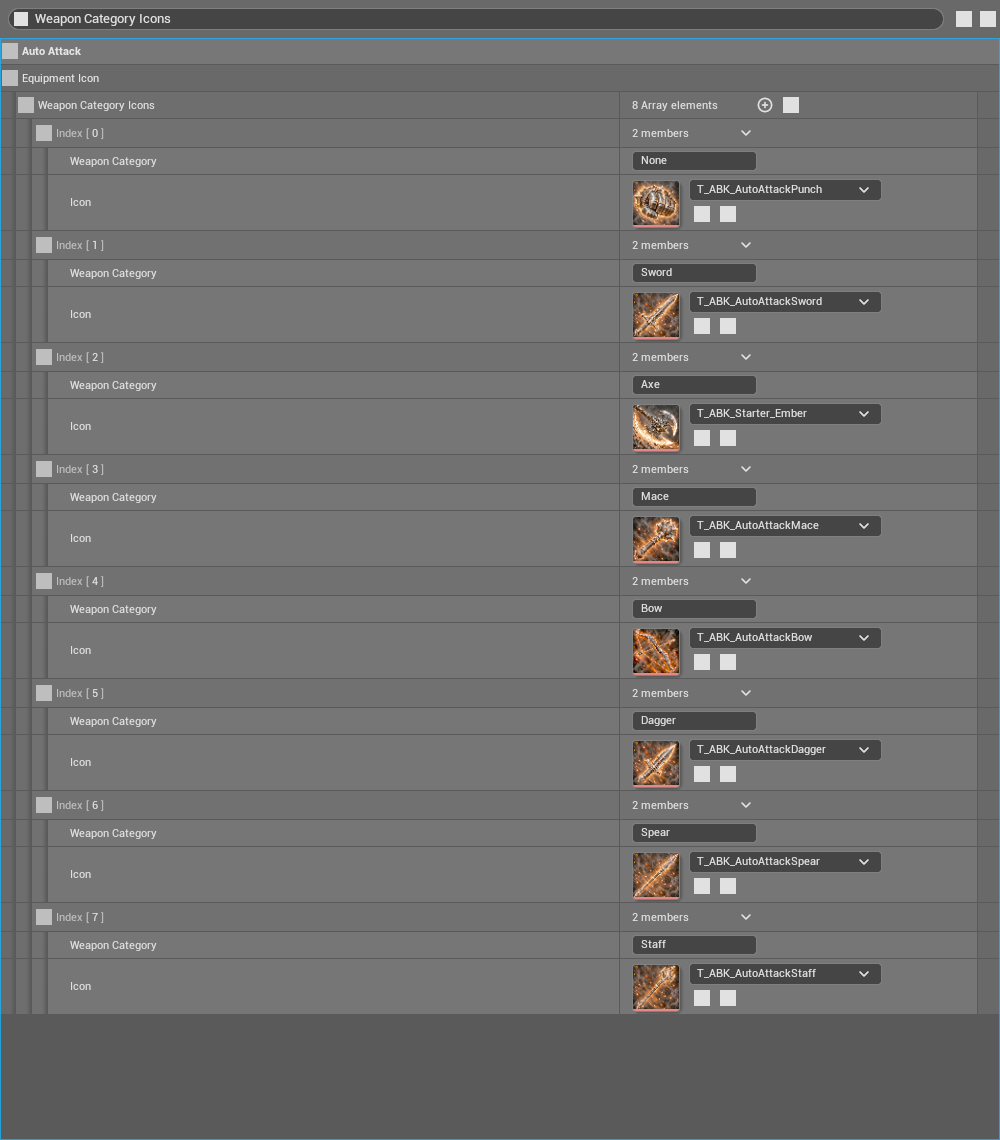
/ActionBarKit/ActionBarKit/Beginner/BP_ABK_SimpleAbilityRouter — Class Defaults — Weapon Category Icons
Select to enlarge. Open original for the full-resolution native capture.
What to connect and what happens
- Enable Show Plugin Content. Open BP_ABK_SimpleAbilityRouter, select Class Defaults, and search Weapon Category Icons in Details. Expand all eight array entries.
- Each entry pairs a weapon category with a texture. None supplies the empty-hand BIS fist; Sword, Axe, Mace, Bow, Dagger, Spear and Staff supply category icons. Choose a category icon rather than an exact item image.
- Compile and save. Call the equipment source’s Notify Weapon Equipped after a successful equip/replacement and Notify Weapon Unequipped when hands become empty. Check that only Auto Attack’s icon changes and cooldowns remain intact.