
Connect the exact local player
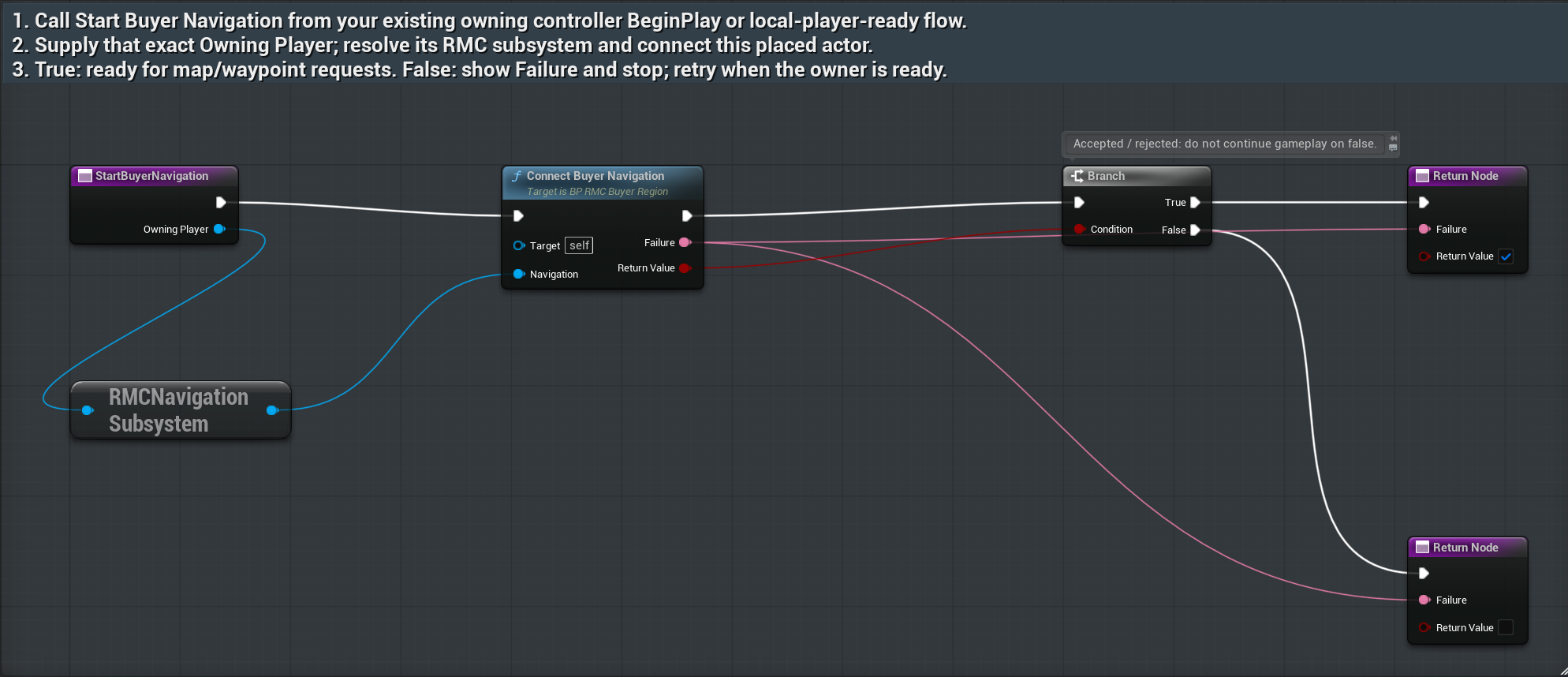
StartBuyerNavigationAsset: /RPGMapsCompass/RPGMapsCompass/Examples/BP_RMC_BuyerRegion
Tab/function: StartBuyerNavigation
- Duplicate BP_RMC_BuyerRegion into your game Content folder and place the duplicate in your existing level.
- From your existing controller or widget, keep a reference to that placed actor. Call Start Buyer Navigation when the owning local PlayerController is ready. Wire that exact controller into Owning Player.
- Branch on Return Value. On true continue to your map or waypoint input. On false show Failure and retry with the correct controller. Compile and save your duplicate.
Expected result: The owning controller resolves this local player’s navigation subsystem; missing ownership returns false with useful failure text.
Connect an already resolved subsystem
ConnectBuyerNavigationAsset: /RPGMapsCompass/RPGMapsCompass/Examples/BP_RMC_BuyerRegion
Tab/function: ConnectBuyerNavigation
- Use this route when your existing Blueprint already holds the owning local player’s RMC Navigation Subsystem.
- Pass it into Navigation on your placed buyer-region actor. Its MapSource and Marker components register with that world.
- Branch on the returned result. Disconnect the previous owner before replacing it; never connect a subsystem from another world.
Expected result: The connected reference becomes this exact owner; same-owner rebind does not duplicate the observer.
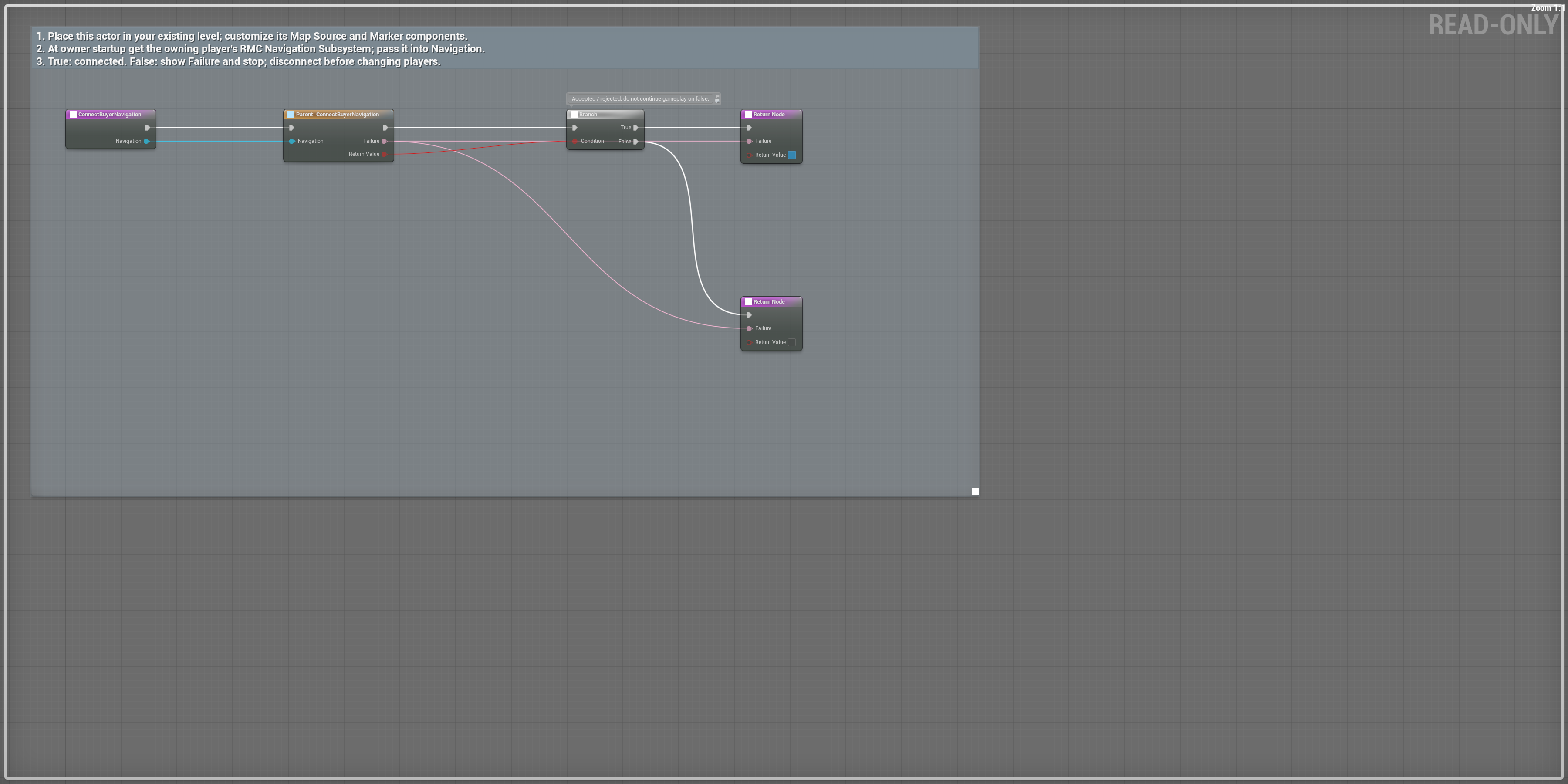
Scroll each panel to read its original-size labels. Follow wires between overlapping panels; use the overview for the complete connection route.
Graph viewport overview. Read node and pin detail in the matching HTML chapter or linked original; use panel 4 where noted for rightmost results.
Assign your overview and bounds
Asset: /RPGMapsCompass/RPGMapsCompass/Examples/BP_RMC_BuyerRegion
Tab/function: MapSourceSettings
- Open your duplicated BP_RMC_BuyerRegion. In Components select MapSource, then open Details.
- Choose your north-up Overview Texture. Set World Center and World Extent as XY half extents in centimeters; clear Use Owner Location as Center when you need a fixed center.
- Keep Active enabled and choose a priority that makes this the intended source. Compile and save; test center and corner UV projections in Play.
Expected result: The captured shipped defaults have no overview assigned and use owner location as center. This image is configuration evidence; buyer-image rendering remains a separate check.
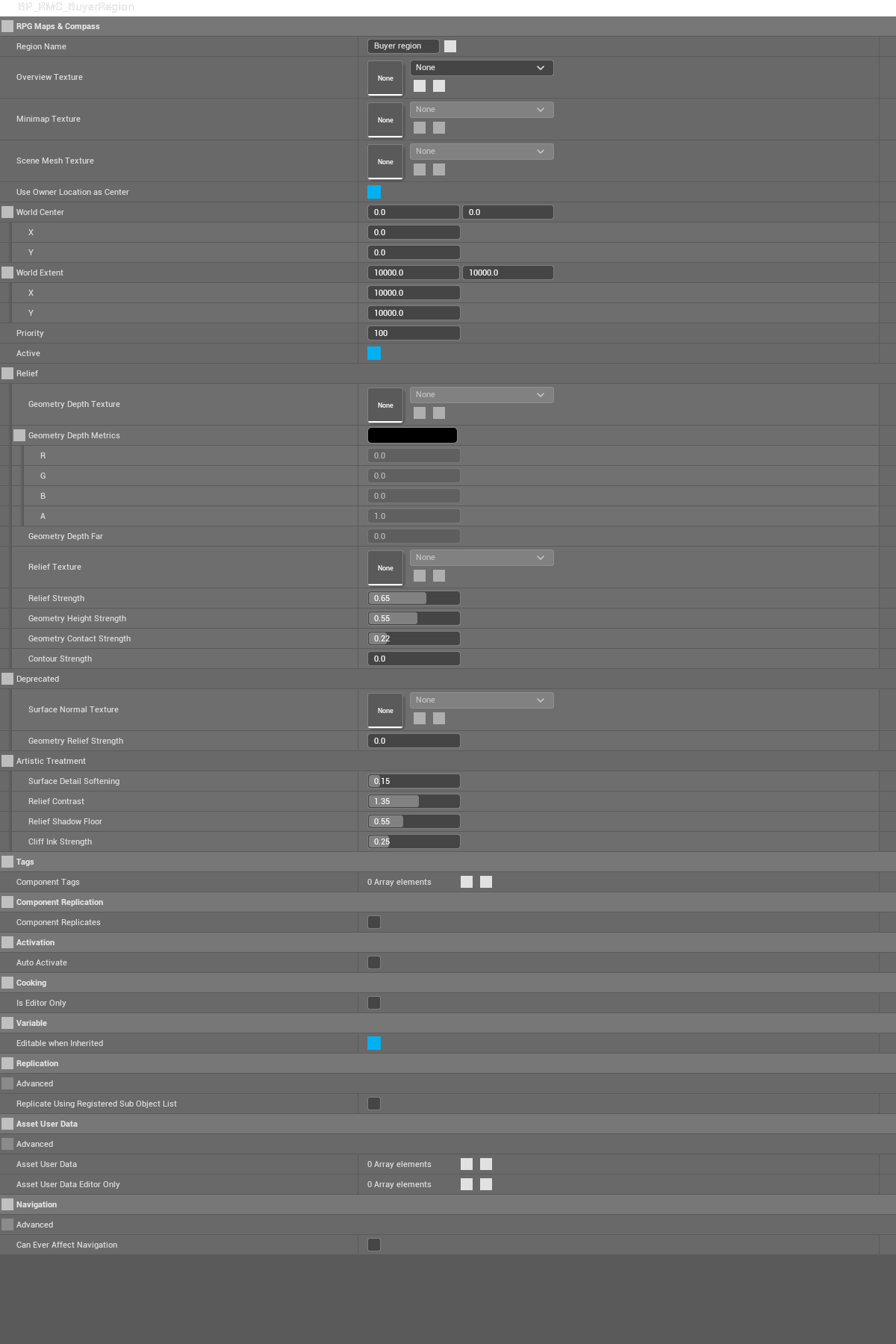
MapSourceSettings — native saved graph/configuration capture 1. Open the original or expand the native details to inspect pins.
Name and filter your landmark
Asset: /RPGMapsCompass/RPGMapsCompass/Examples/BP_RMC_BuyerRegion
Tab/function: MarkerSettings
- In the same duplicated asset select Marker in Components, then open Details.
- Set Marker Label, category, color and the surfaces where your landmark should appear. Move the placed actor to the intended world location.
- Compile and save. Exercise your game’s visibility/category filter and confirm the landmark disappears after the actor unregisters.
Expected result: The actor supplies landmark data; the navigation subsystem applies category and surface visibility.
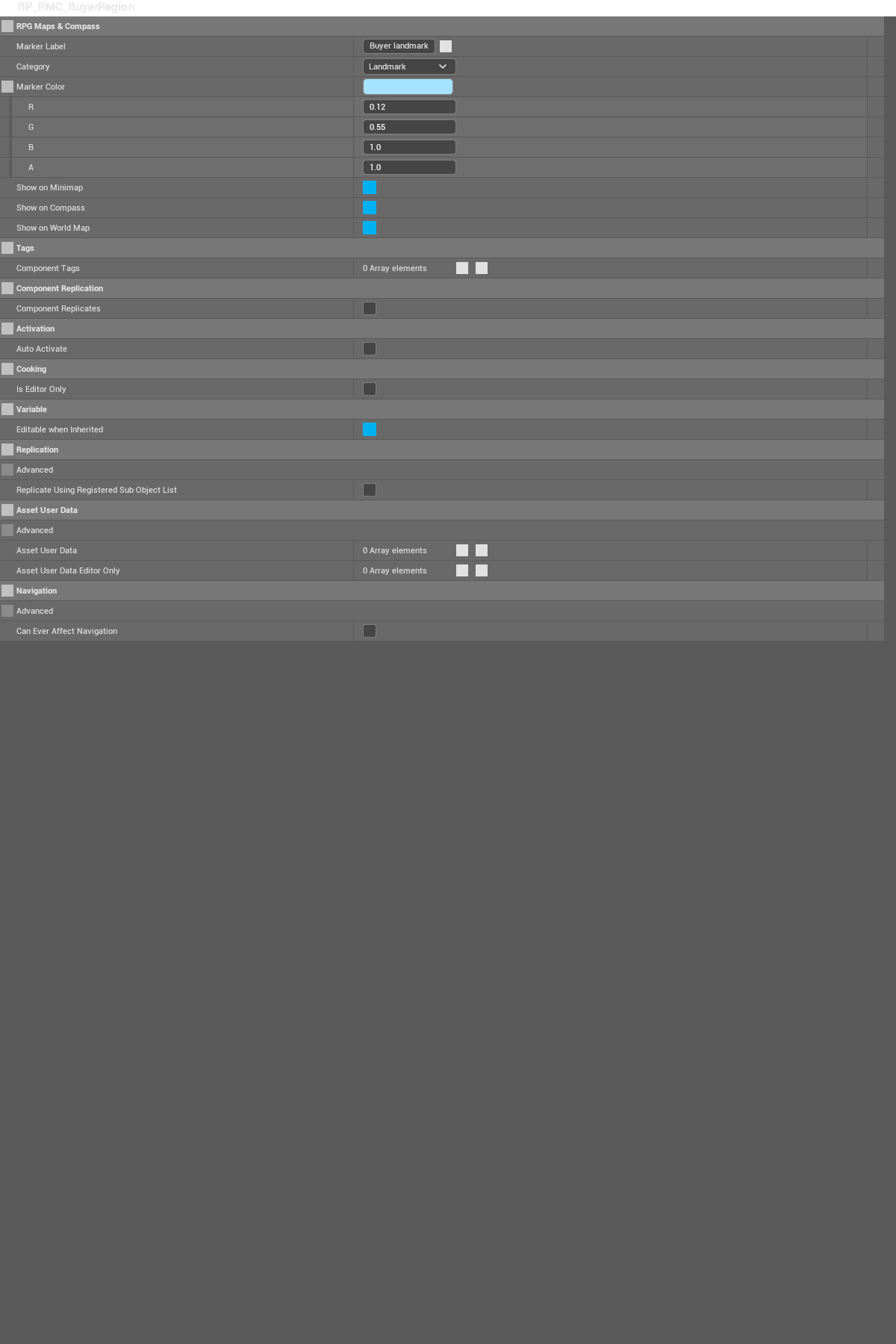
MarkerSettings — native saved graph/configuration capture 1. Open the original or expand the native details to inspect pins.